Contacts
Where to find contact management
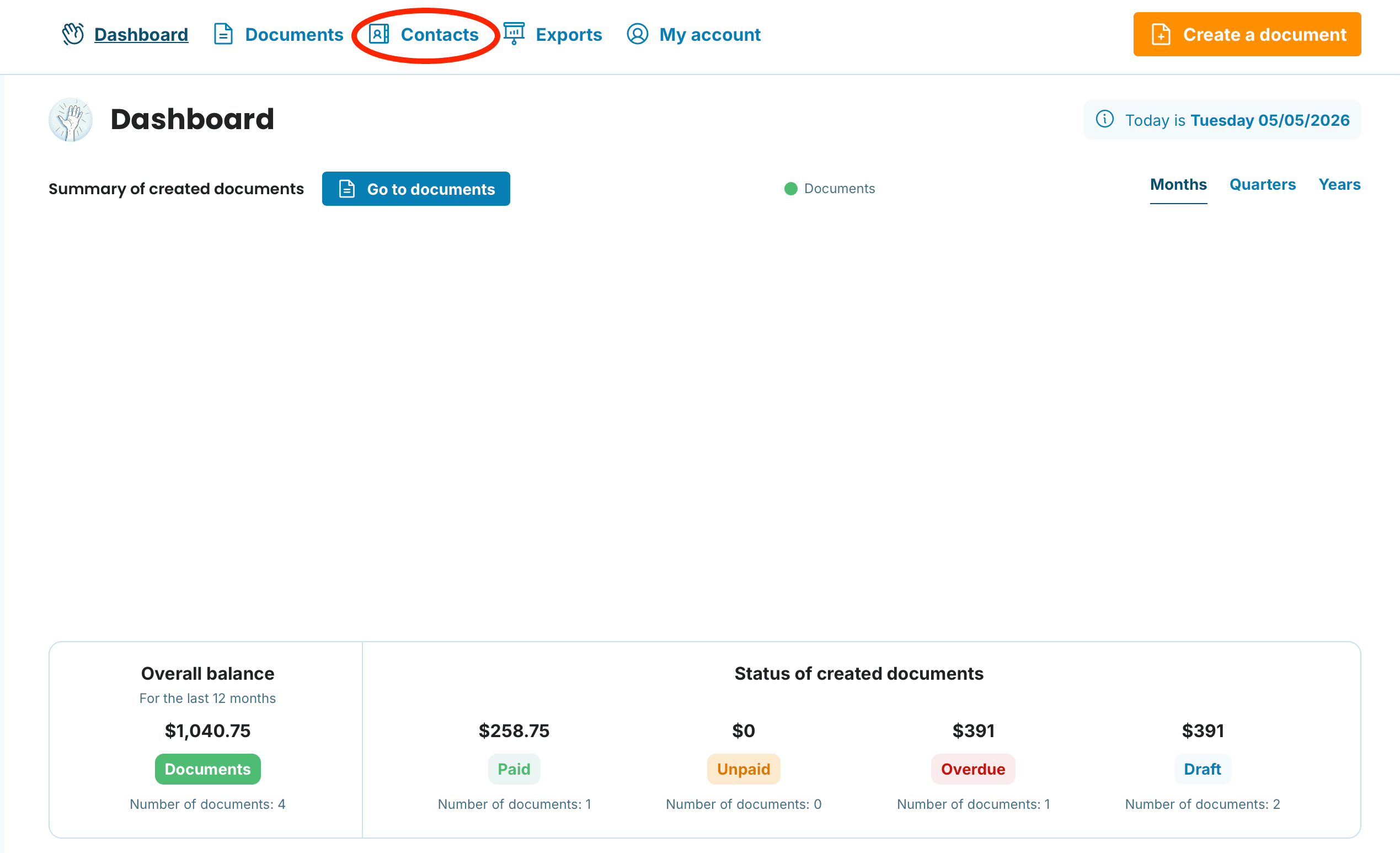
You'll find the Contacts section in the top menu after logging in, regardless of which plan you're on.
Adding a new contact
There are two ways a contact gets saved in InvoiceOnline:
Automatically — when you issue an invoice to a new client, their details are saved to your contact database.
-
Manually — you can add a contact even without issuing an invoice. Here's how:
Open the Contacts section in the top menu.
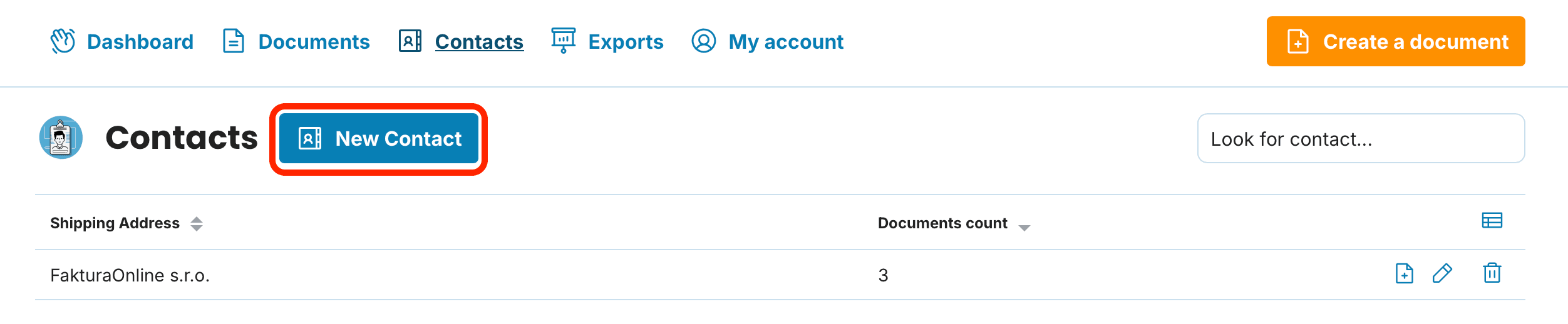
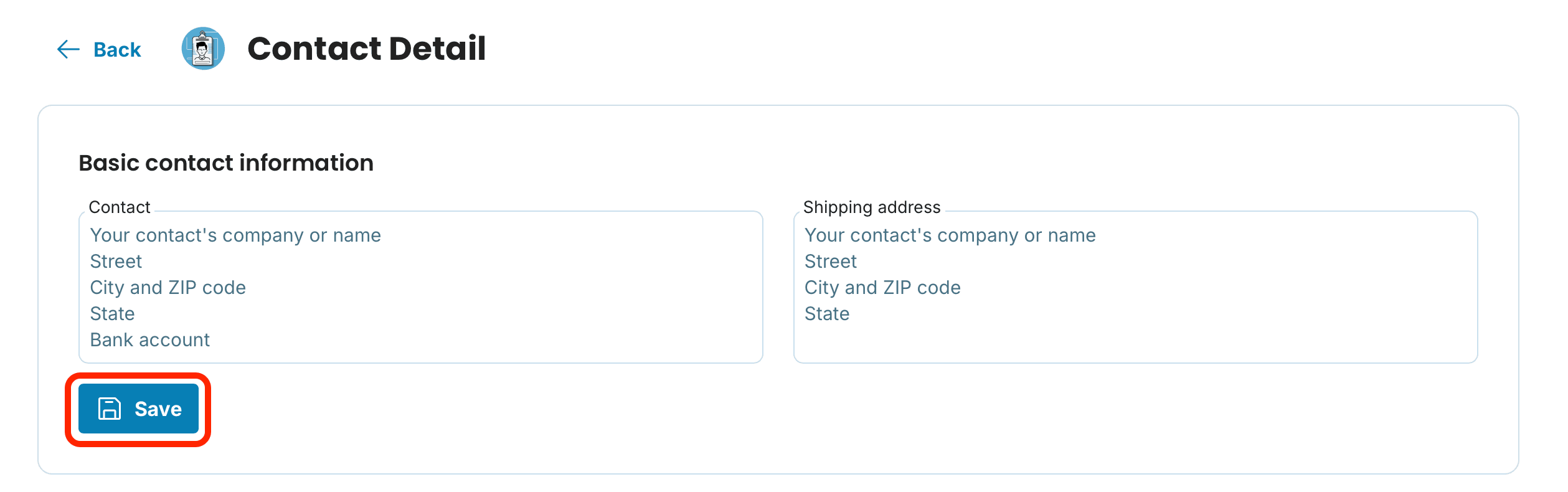
Then click New contact, fill in the details, and save your changes.
Managing contacts in the overview
The contact overview gives you several tools for quick navigation:
Sorting — click the arrows next to the Shipping address and Documents count columns to sort entries in ascending or descending order.
Search — find a specific client through the Look for contact field.
Quick actions — icons on the right side of each row let you issue a new invoice, edit the details, or delete the contact.

Deleting a contact has no effect on invoices you've already issued. The history is preserved — the client just won't appear as a suggestion next time.
Invoice history for a specific client
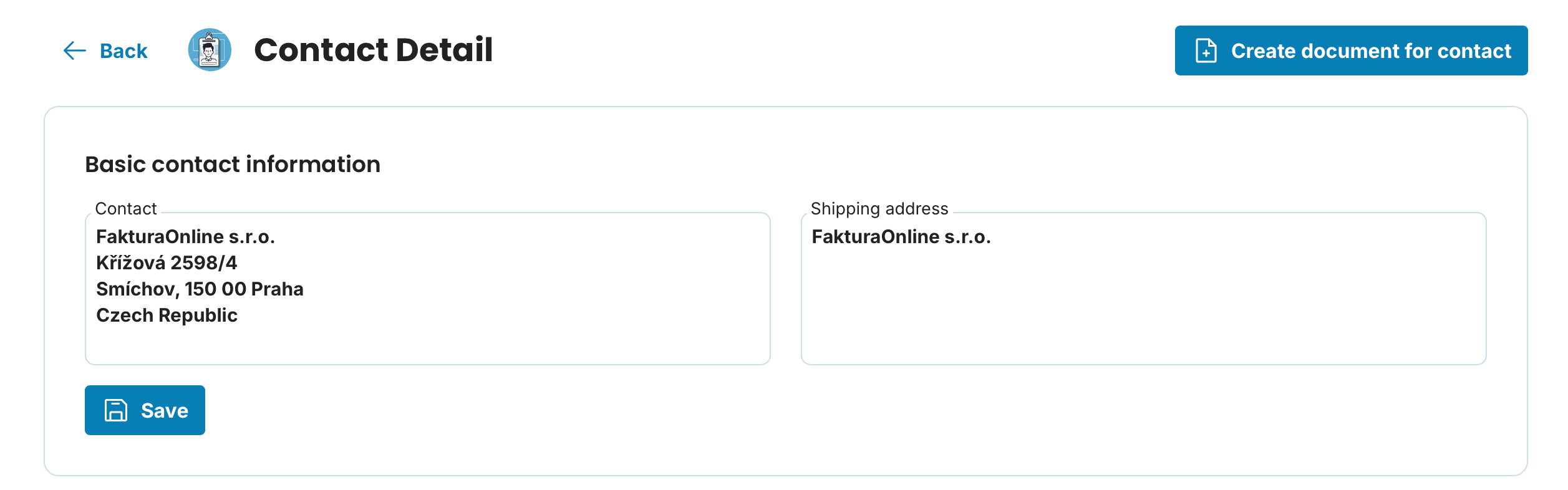
Click on a Edit contact option of specific contact to expand the contact detail.
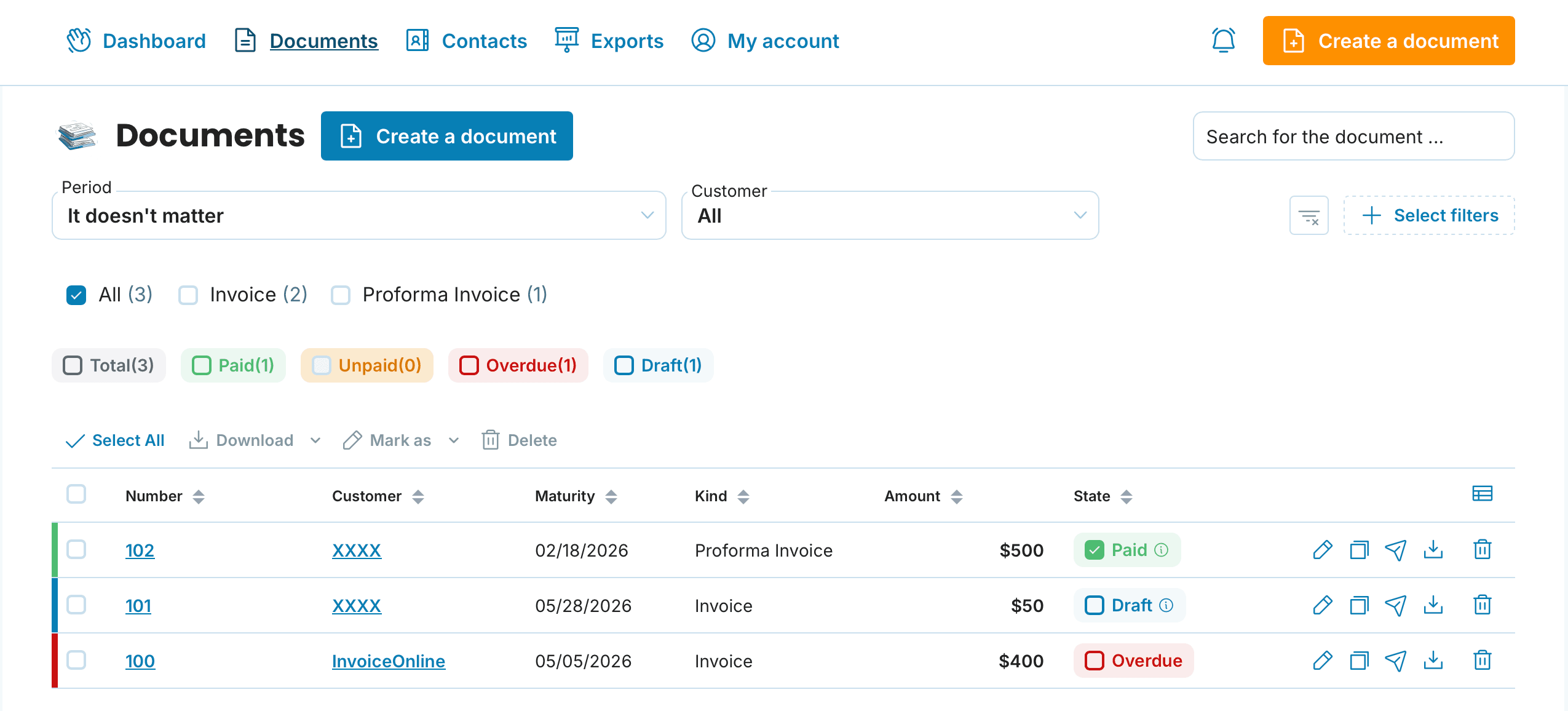
At the bottom you'll find an overview of all invoices you've issued to that client. Amounts, due dates, and payment statuses are all in one place.
Exporting contacts
You can download your entire contact database any time as an Excel (XLSX) or vCard (VCF) file. Excel is useful when you need to pass the list to your accountant, archive data outside the app, or update entries in bulk — just open the file and work with it like a regular spreadsheet. vCard, on the other hand, is what you'll use for quick import of contacts into your phone or email client, so you have your clients on hand even outside InvoiceOnline.
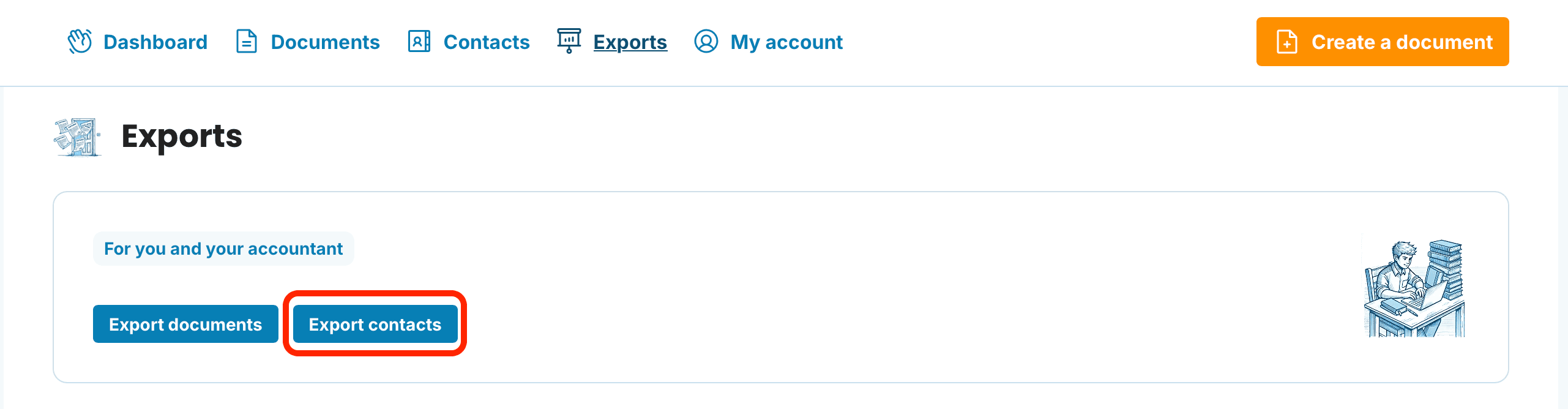
In the top menu, click the Exports section and then the Export contacts button.
Then choose the format — Excel or vCard.
A well-maintained contact database speeds up your entire invoicing — instead of copying details from emails and old invoices, it's just a few clicks. That's why it's worth keeping contacts up to date from the start and regularly filling in missing emails or phone numbers, so you have them on hand when you need to send someone a reminder or a new invoice.