How to enable two-factor authentication (2FA)

What is two-factor authentication and why we recommend it
If you log into InvoiceOnline only with a password, there is a risk that someone unauthorized could access your account — for instance, if the password from another service where you use the same login details is leaked.
Two-factor authentication (2FA) adds an extra step to traditional logins. After entering your password, the app requests a one-time code from your phone. This means no outsider can log in, even if they know your password, as only you have the code.

Before enabling 2FA, we recommend making sure you have a strong and unique password — if you want to change it, follow our guide on changing your login credentials.
Two methods — choose what suits you best
InvoiceOnline offers two methods of two-factor authentication. Both are reliable; they just differ in how you receive the code.
SMS code — after entering your password, you will receive a text message with a six-digit code. Simply enter it, and you're logged in. No additional app is needed, just a phone that can receive SMS.
Authenticator app — the code is generated directly in an app on your phone, such as Google Authenticator, Authy, or Microsoft Authenticator. The code changes every 30 seconds and works even without an internet connection.

Not sure what to choose?
SMS is easier to set up — you just need to enter your number. The authenticator app is slightly more secure as the code doesn't travel over the mobile network. In both cases, your account will be significantly more protected than by just a password.
How to enable 2FA via SMS
Log into InvoiceOnline.
Go to the My Account section in the top menu.
Find the Two-Factor Authentication section.
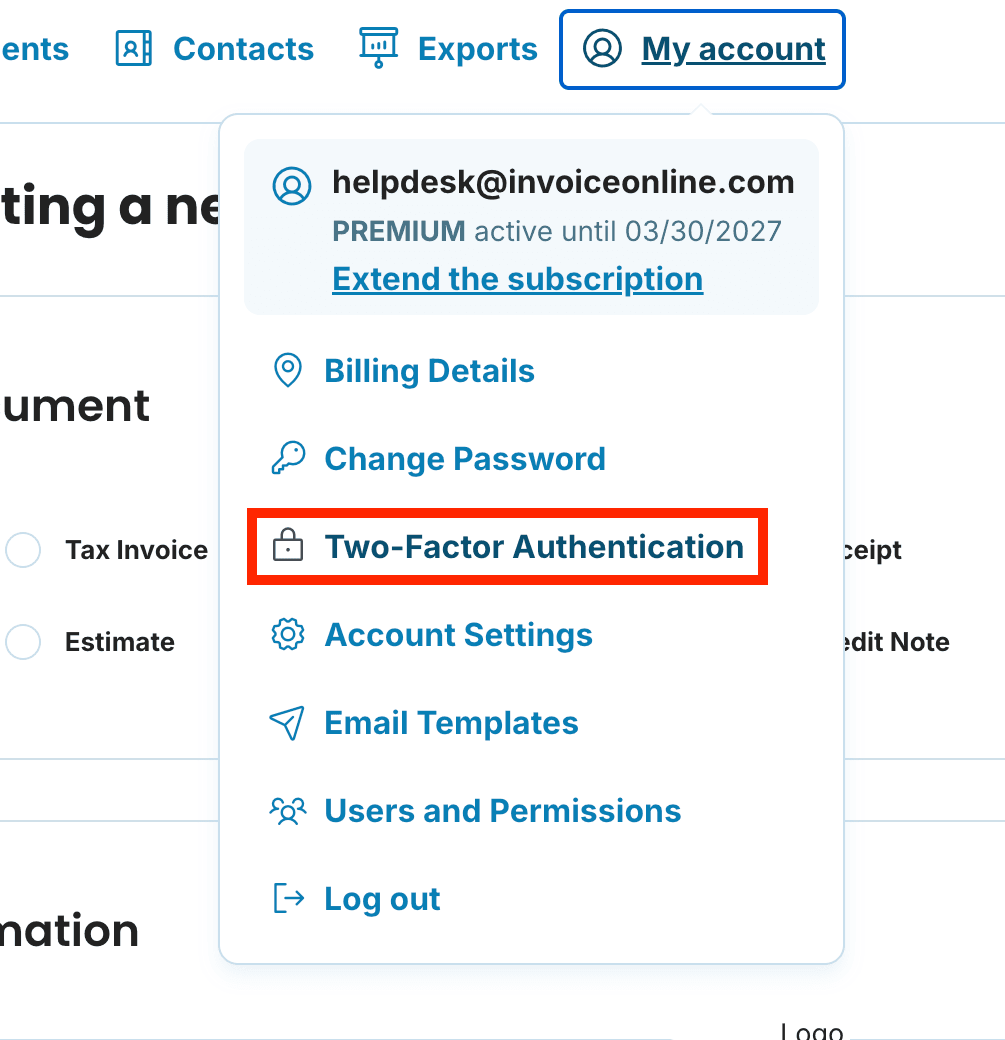
Select the SMS method and click Set up Verification.
Enter your phone number and click Send verification code.
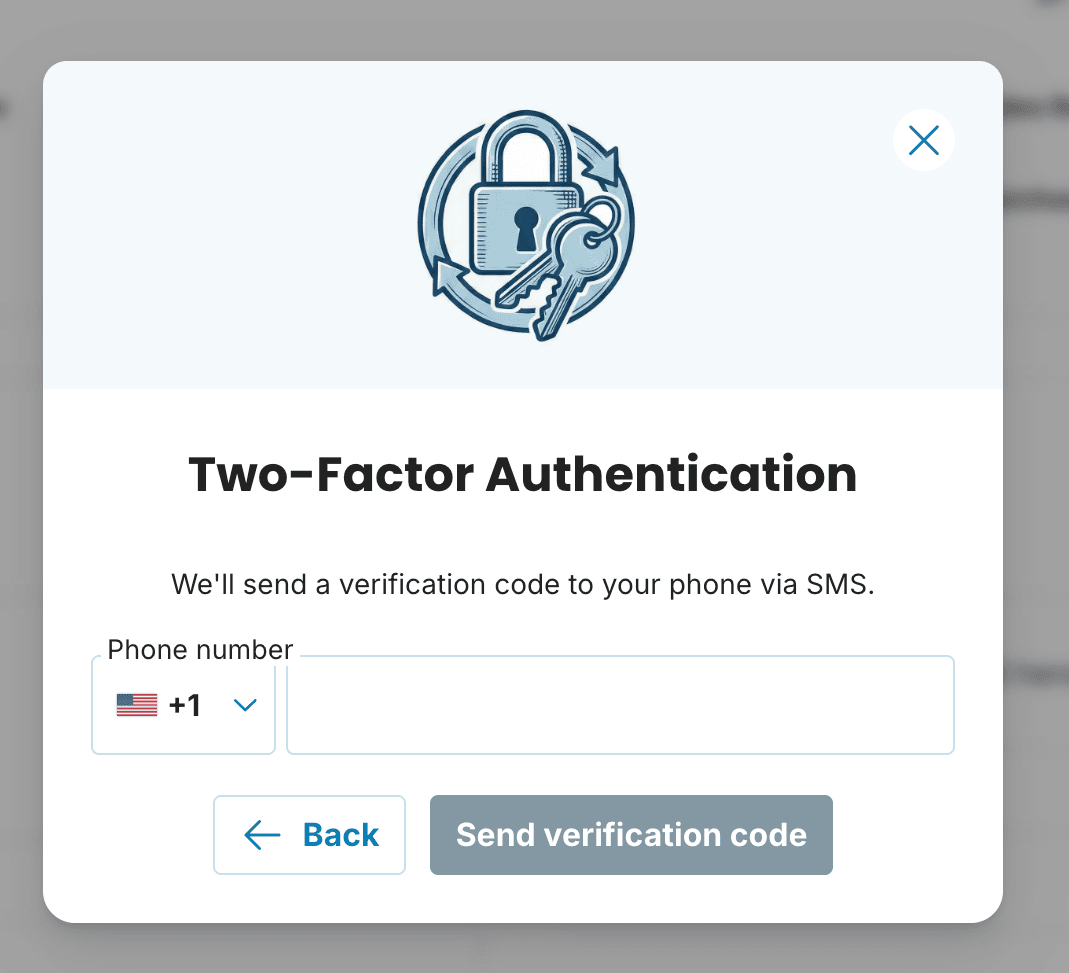
You will receive an SMS with a six-digit code — enter it into the displayed field.
Confirm, and you're done. From your next login, the app will always ask for the SMS code after you enter your password.
How to enable 2FA via an authenticator app
If you haven't installed an authenticator app yet, download one of these (all are free for Android and iPhone):
Google Authenticator
Authy — also offers backup and sync across devices
Microsoft Authenticator
Once you have the app ready:
Log into InvoiceOnline.
Go to My Account → Two-Factor Authentication.
Select the Authenticator App method and click Set up Verification.
A QR code will appear on the screen. Open the authenticator app on your phone and scan it (usually via a “+” button or “Add Account”) or manually enter the code.
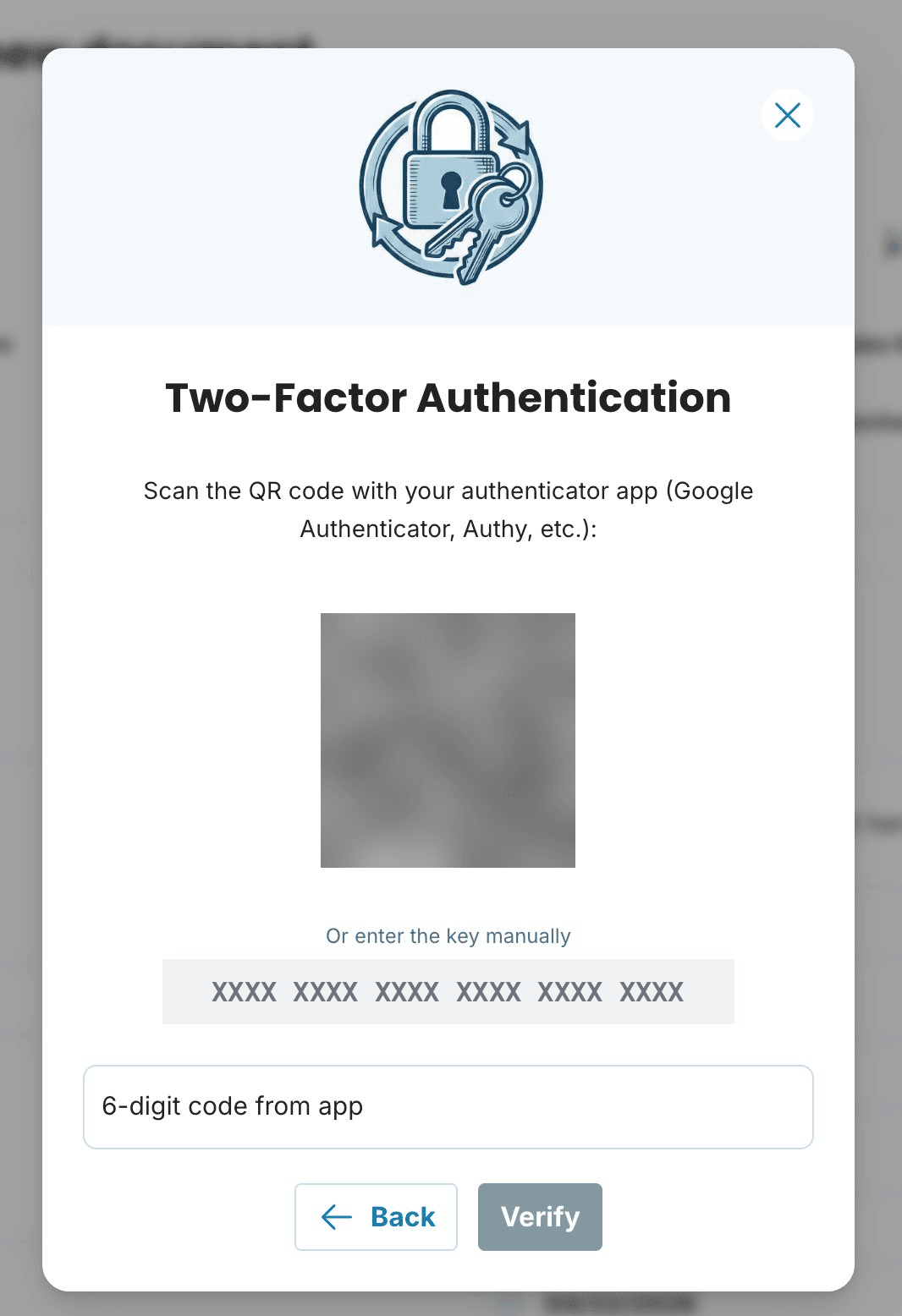
The app will begin to display six-digit codes that change every 30 seconds. Enter the current code into the field on InvoiceOnline.
Confirm — 2FA is active, and from your next login, you will enter the app code each time.
Backup codes — save them right away
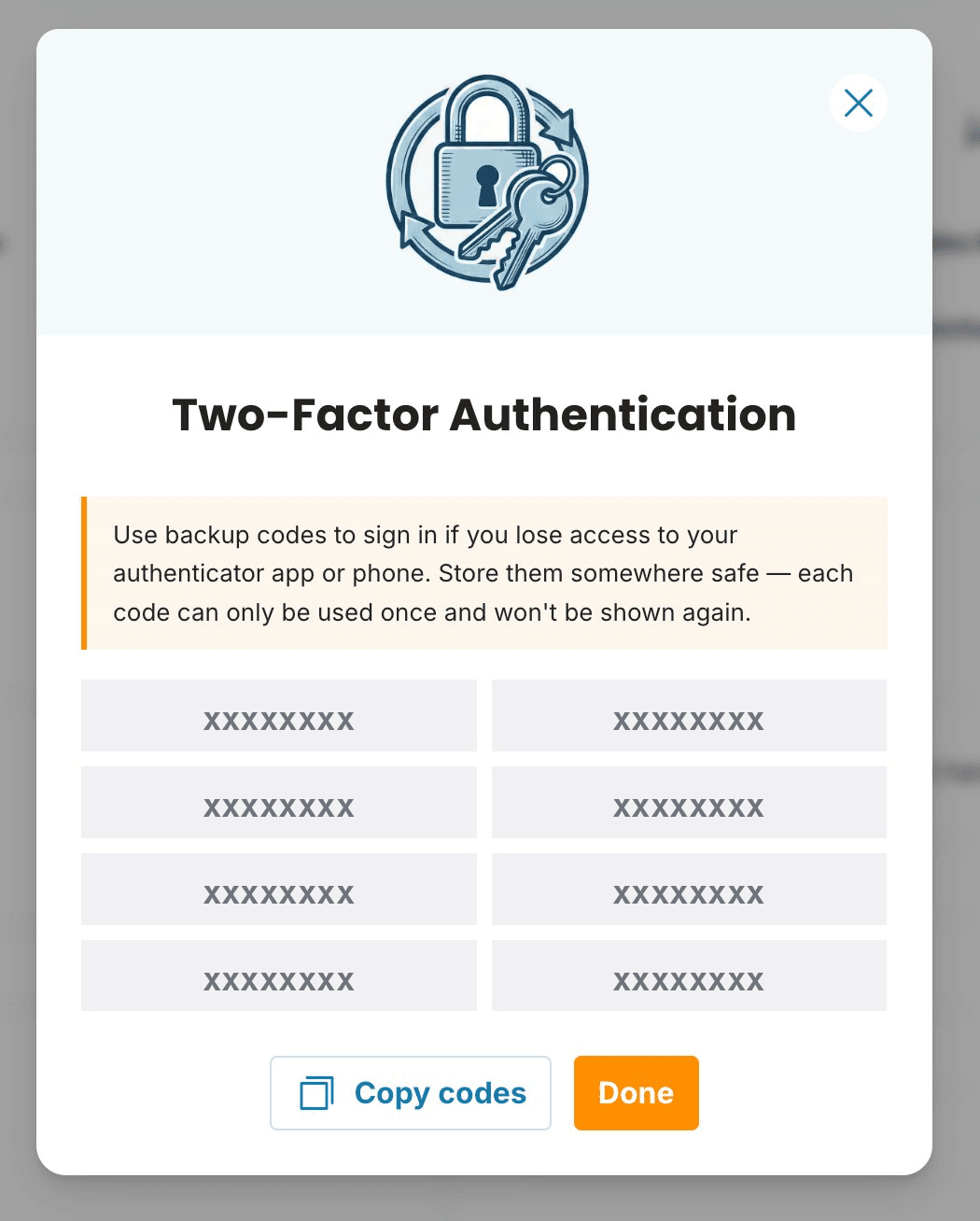
After activating 2FA (whether via SMS or app), the system generates 8 backup codes for you. These are your backup plan if you lose access to your phone — if you lose it, break it, or don’t have it with you.

How to do it:
After activating 2FA, a list of 8 backup codes will appear.
Click the button to copy all codes at once.
Save them in a secure place — a password manager, an encrypted note, or print them out and store them physically.
Lost your password too? Follow our Forgotten password guide and reset it in just a few minutes.
How logging in works after enabling 2FA
Logging in changes by just one step in practice:
On the login page, enter your email and password as usual.
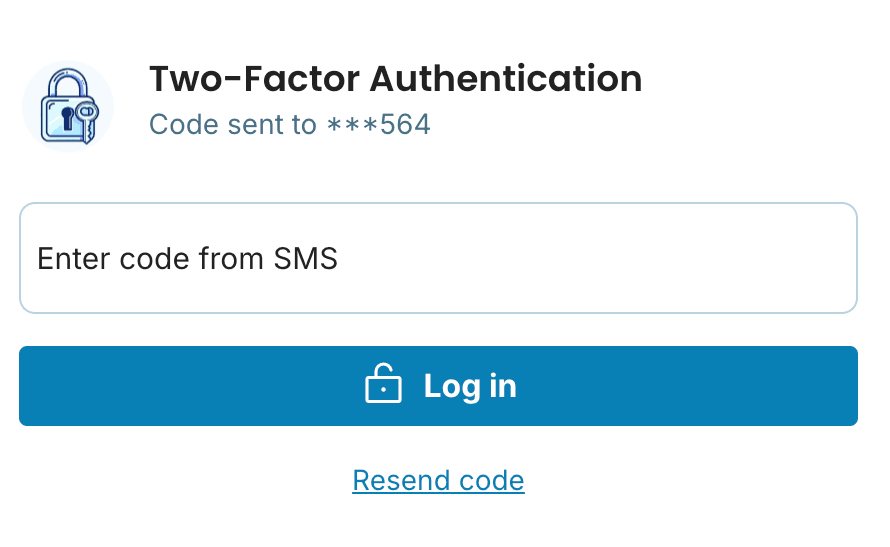
The app will ask you for a one-time code.
Depending on the method you chose, enter either the SMS code or the current code from the authenticator app.
After entering the code, you will be logged in.
If you don't have phone access, you can enter one of the backup codes instead — there will be an option for it on the login screen.
Disabling 2FA and regenerating backup codes
How to disable 2FA
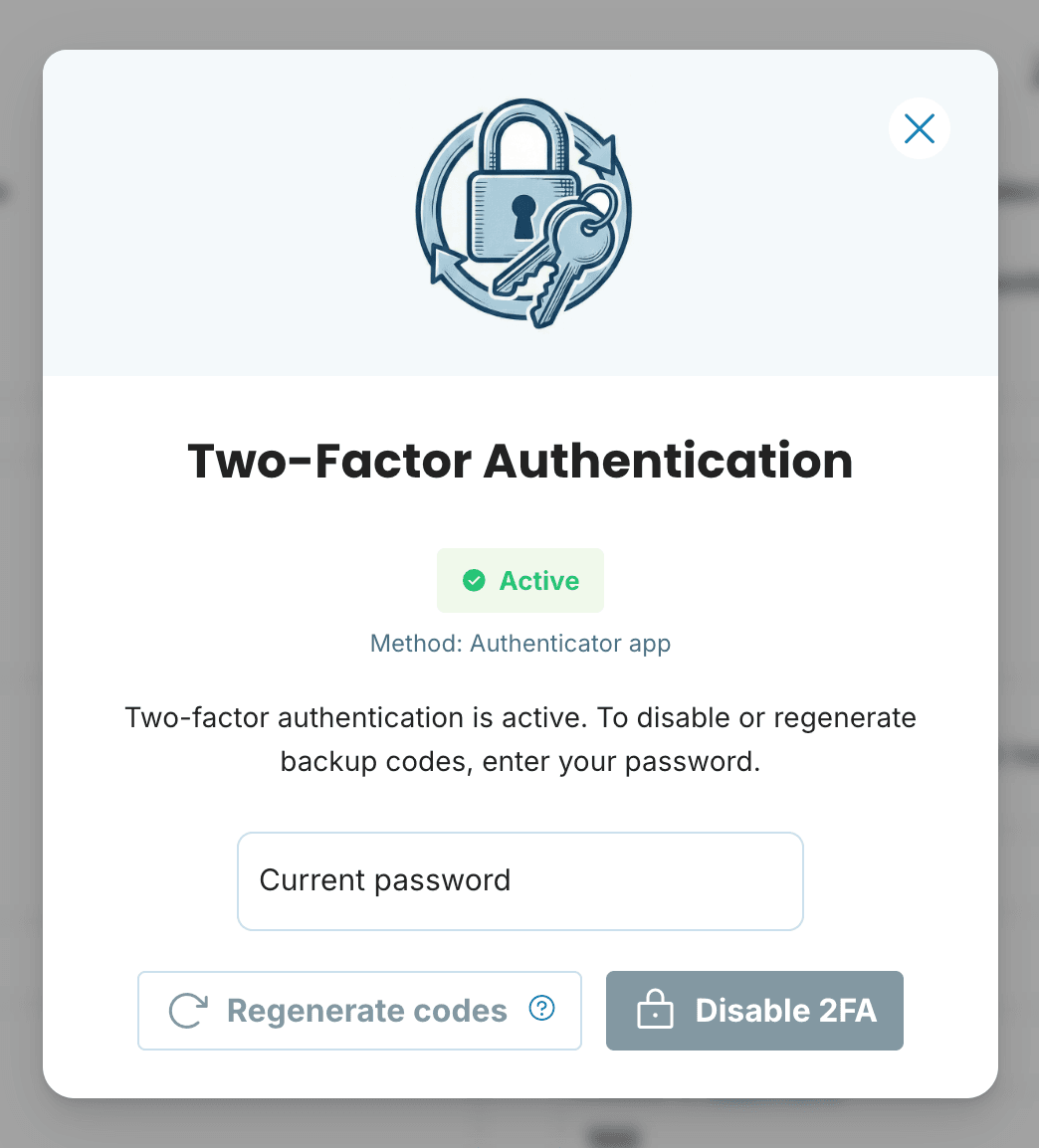
If you decide to disable two-factor authentication, the process is simple:
Go to My Account → Two-Factor Authentication.
Click on Disable 2FA.
Enter your current password to confirm.
From the next login, you will only need a password.
How to regenerate backup codes
If you've lost your backup codes, used most of them, or simply want to generate them again:
Go to My Account → Two-Factor Authentication.
Select the option to regenerate backup codes.
Confirm with your current password.
The system will generate 8 new codes, invalidating all previous ones.
Copy the new codes immediately and save them in a secure place.

Is two-factor authentication mandatory?
No, enabling it is completely your choice. However, we recommend it to all users as it significantly enhances account security.
Does 2FA work on all plans?
Yes. You can enable two-factor authentication on both the Mini and Premium plans, as well as during the trial period.
Is there an extra cost?
No, 2FA is included in all plans and is absolutely free.
SMS code isn't arriving — what to do?
Check that the correct phone number is entered in the settings. Wait at least 60 seconds and try sending the code again. Some phones may block SMS from short numbers — check your phone's messaging settings for this.
Authenticator app code doesn't work.
The most common cause is inaccurate time on the phone. Go to your phone's settings, open the Date and Time section, and enable automatic setting. The codes are time-sensitive — even a slight offset may cause the code to fail.
Can I switch from SMS to app (or vice versa)?
Yes. Just disable the existing 2FA (in My Account → Two-Factor Authentication, you'll need a password) and then re-enable it with the other method.
Can I use SMS and the app simultaneously?
Currently, you can choose one of the methods. However, you can switch between them anytime by disabling 2FA and re-enabling it with a different method.
