Settings of shown columns by the issued invoices

InvoiceOnline allows you to customise the displayed columns according to your preferences — whether you want to quickly see the payment status, due date, or tax point date for sales tax purposes. In this guide, we'll show you how to tailor your invoice overview to your needs.
You'll appreciate column settings especially in these situations:
You're monitoring cash flow — enable the payment status column and instantly see which invoices are paid and which are pending
You collect sales tax — the tax point column will help you quickly check which filing period an invoice falls into
You invoice multiple customers — add the Customer column for easier navigationSettings can be found directly in the section Issued invoices right under the icon Column showing.
How to set up columns?
You'll find the settings in the Issued Invoices section – click on the Display columns icon on the right
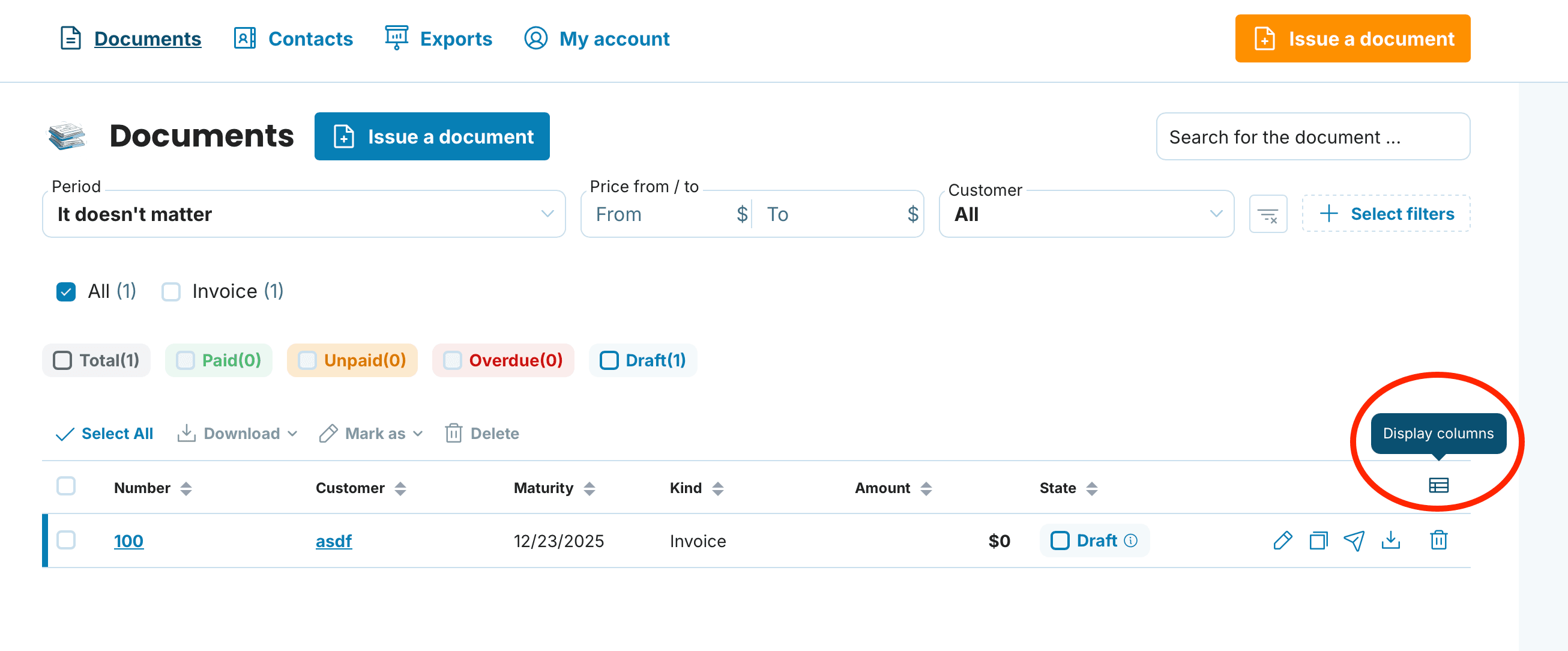
After clicking the icon, a menu will expand with the following columns:
Number — fixed item, always displayed
Seller
Customer
Issued on
Maturity
Tax point on — date determining the sales tax filing period
Paid on
Sent
Kind
Amount — fixed item, always displayed
State
Recommended settings by business type

Not collecting sales tax
Key columns for you are: Customer, Issued on, Maturity, State, and Paid on. You can hide the Tax point on column — as a business not collecting sales tax, you don't need to track it.

Collecting sales tax
We recommend having enabled: Customer, Issued on, Tax point on, Maturity, State, and Paid on.
The tax point date indicates when sales tax liability is triggered for a transaction. It usually matches the invoice issue date, but not always — for example, it may differ when payment is received before invoicing. The tax point is particularly important at the turn of months or quarters, as it determines which sales tax filing period the invoice belongs to. If you have this column displayed in your overview, you can more easily verify that all documents are in the correct period.
High volume of invoices (10+ monthly)
When you invoice frequently, you'll appreciate a streamlined view. Keep only: Customer, Maturity, and State. You can view details by clicking on a specific invoice.
In the dropdown menu, tick the boxes next to the columns you need in your overview. Unticking a box will hide the column.

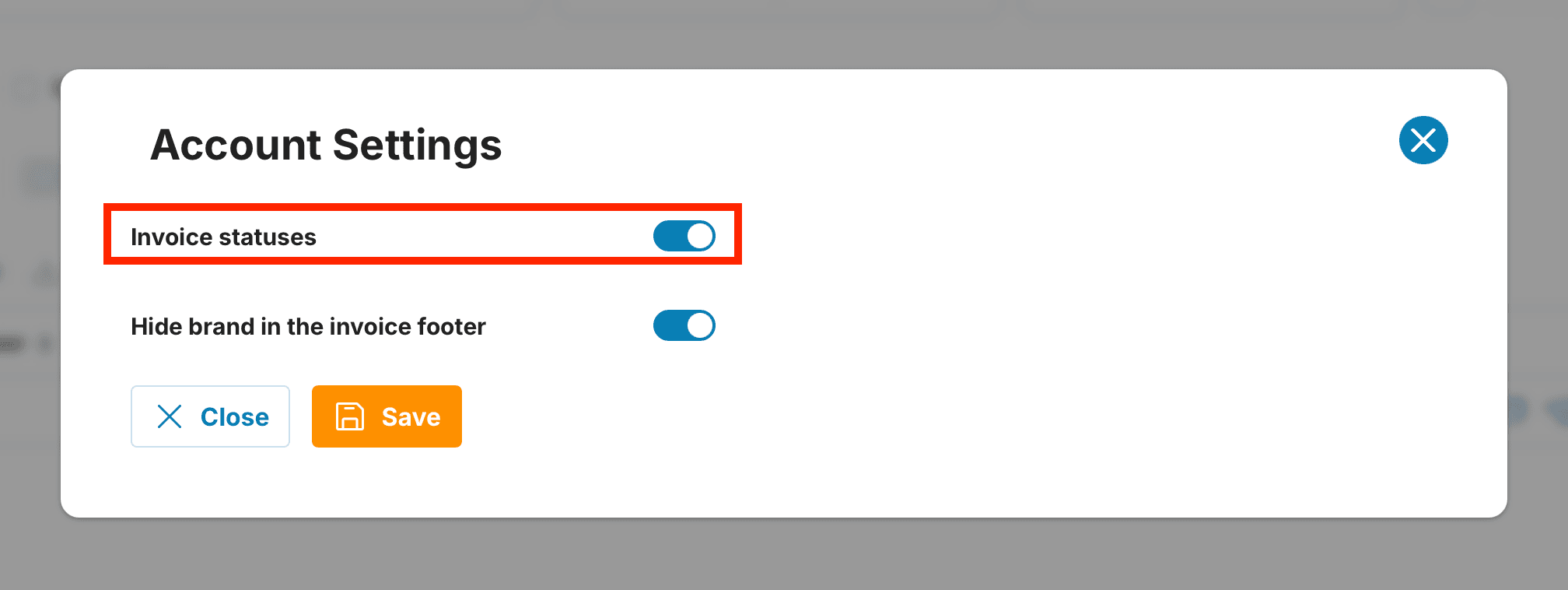
To see columns State, Paid and Sent it needed to have State of Invoices turned on. It can be easily done in the section My account – Account settings – turning on Invoice statuses. After this action, it is needed to Save the settings.
documents with easeCreate Document