Sending an Invoice via Email
How to Send an Invoice by Email
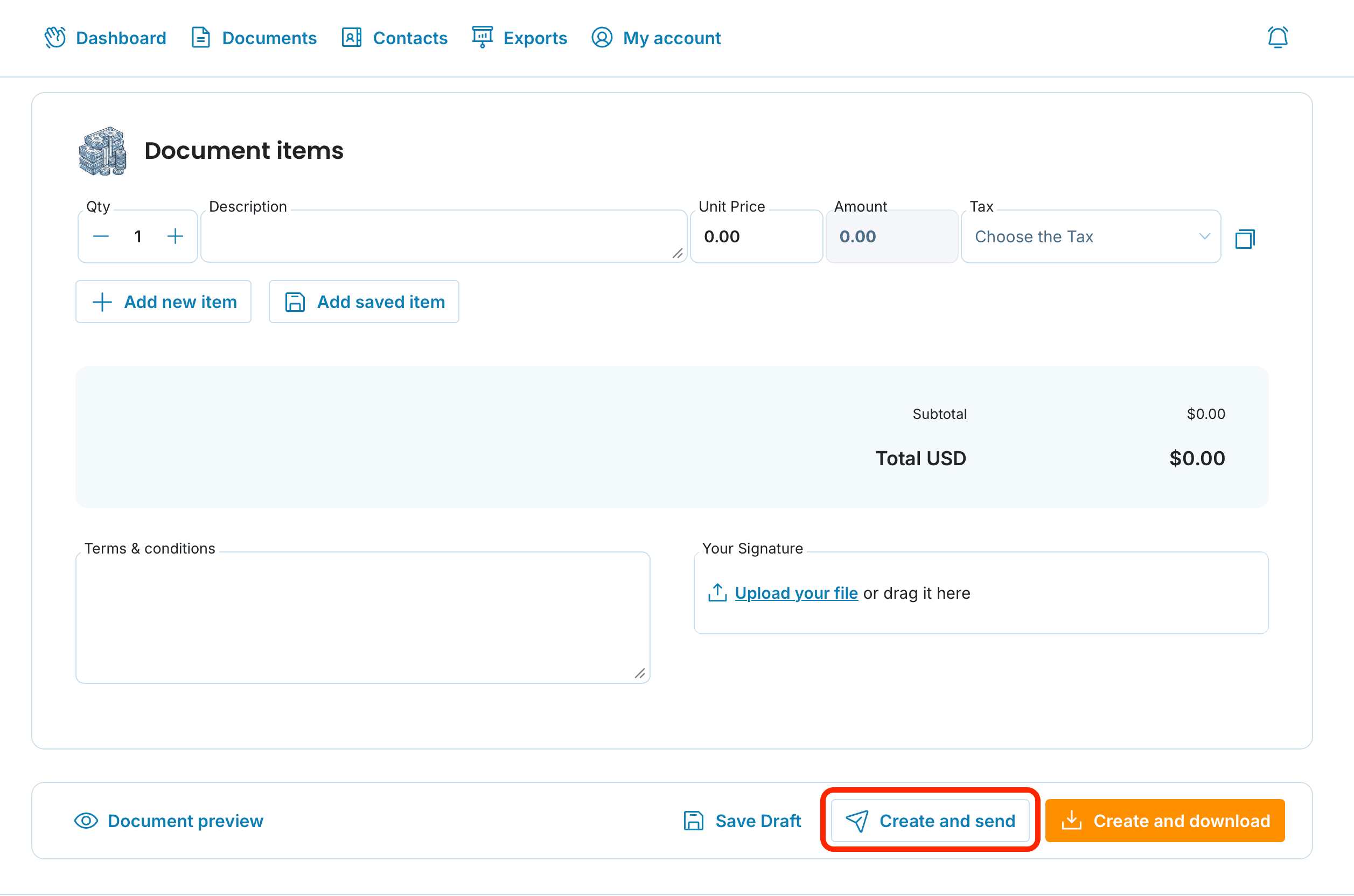
Create your invoice as usual
In the bottom right corner, find the Create and Send button
After clicking, a window will appear where you can enter the recipient's email (or select from the dropdown menu)
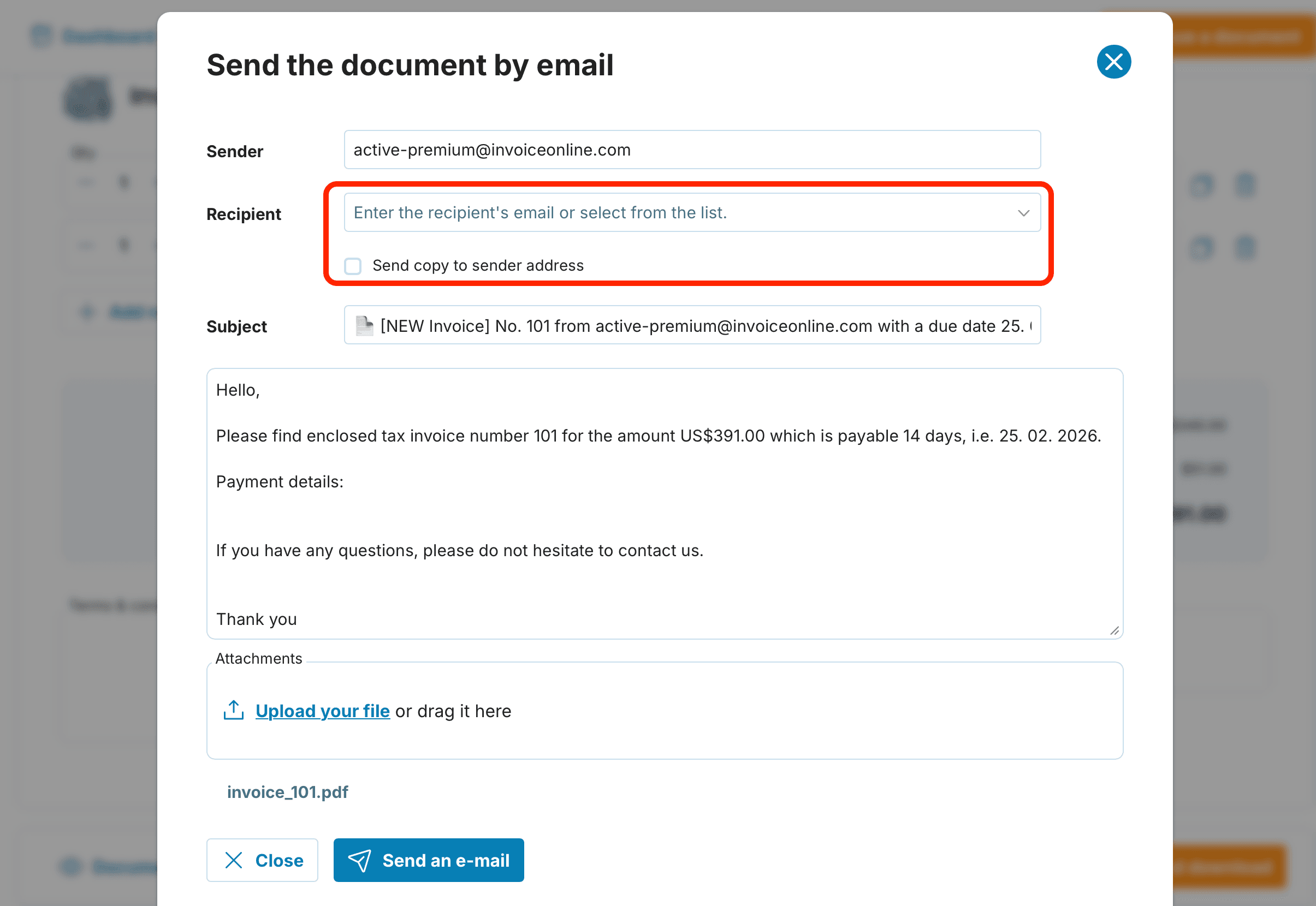
Optionally, edit the email text, add a copy to your own email, or attach a file
Click Send an e-mail – your invoice will be sent
If you prefer not to send the invoice by email directly from the app, you can use the Issue and Download button to save the invoice to your computer and work with it as you wish.
Email Templates
You can preset the subject line and email text in the My Account → Email Templates section.
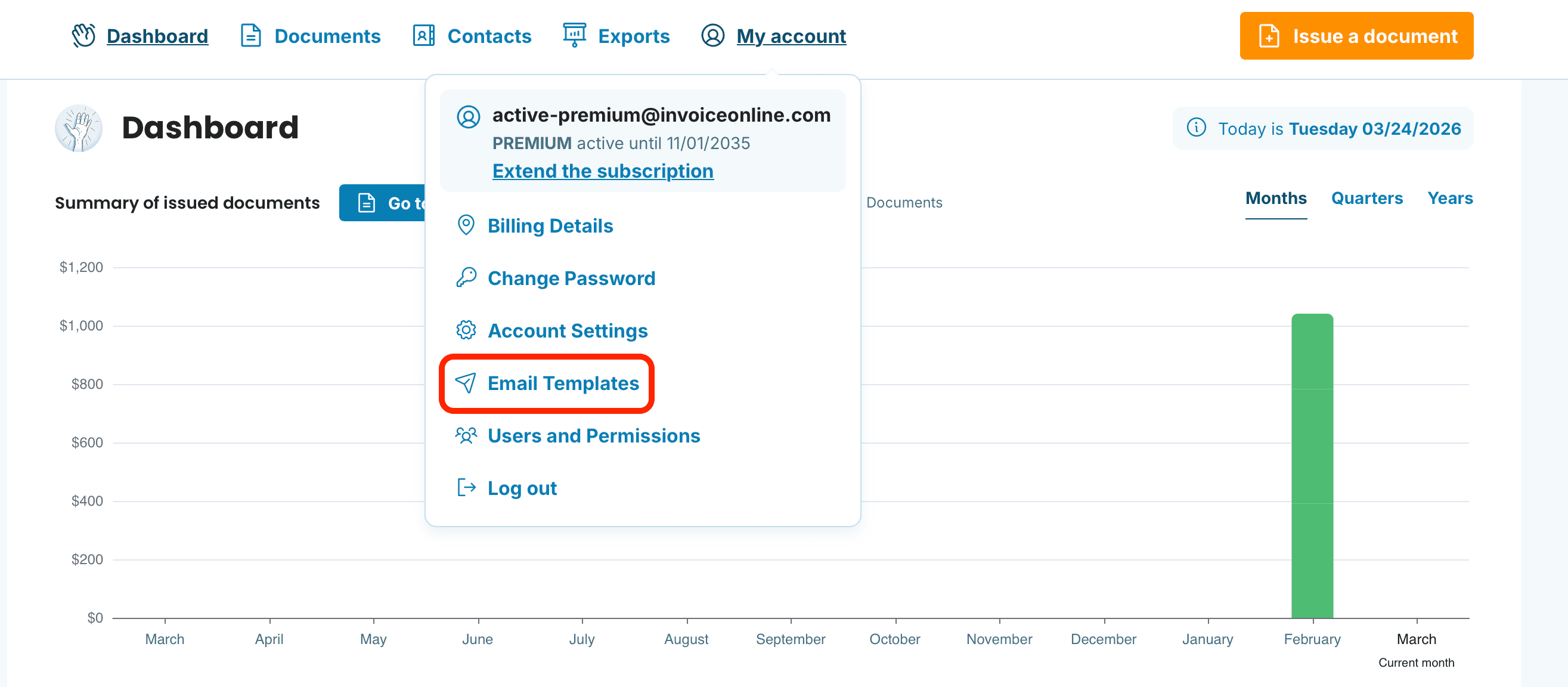
For detailed instructions on creating email templates, check out this article.
Sending a Previously Issued Invoice by Email
Premium plan users can send any previously issued invoice by email at any time from the Issued Invoices section.
In the Issued Invoices section, click the paper airplane icon
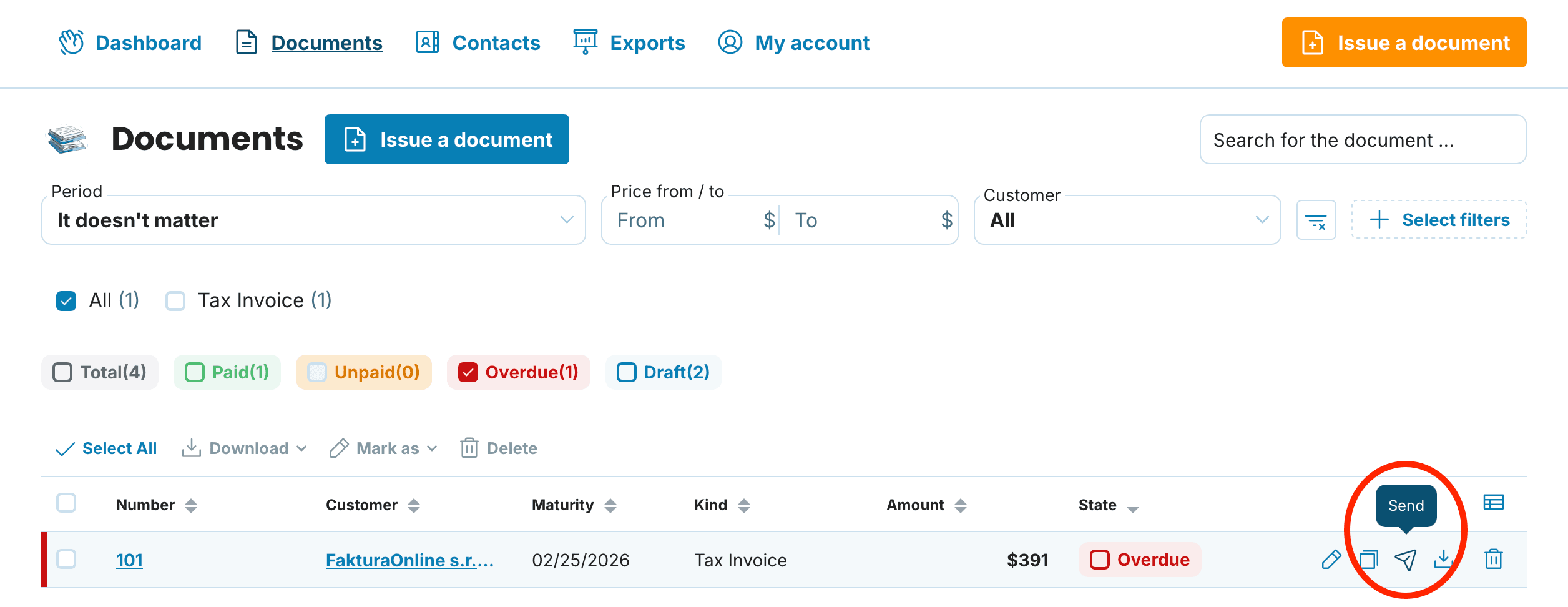
The email details window will open – follow the same steps as described above

Through this feature, you can also send a thank-you message when an invoice has been paid, or a payment reminder if the due date has passed. This is made possible by the Invoice Status feature. The email type is set automatically based on the recorded invoice status.
Verifying Invoice Email Delivery
If you want to check whether you've previously sent an invoice by email and whether it was delivered to the recipient:
In the Issued Invoices section, click on the invoice number
In the side panel, you'll find the Invoice History section – here you can see the date and time the invoice was sent, when it was delivered, and when the recipient viewed it
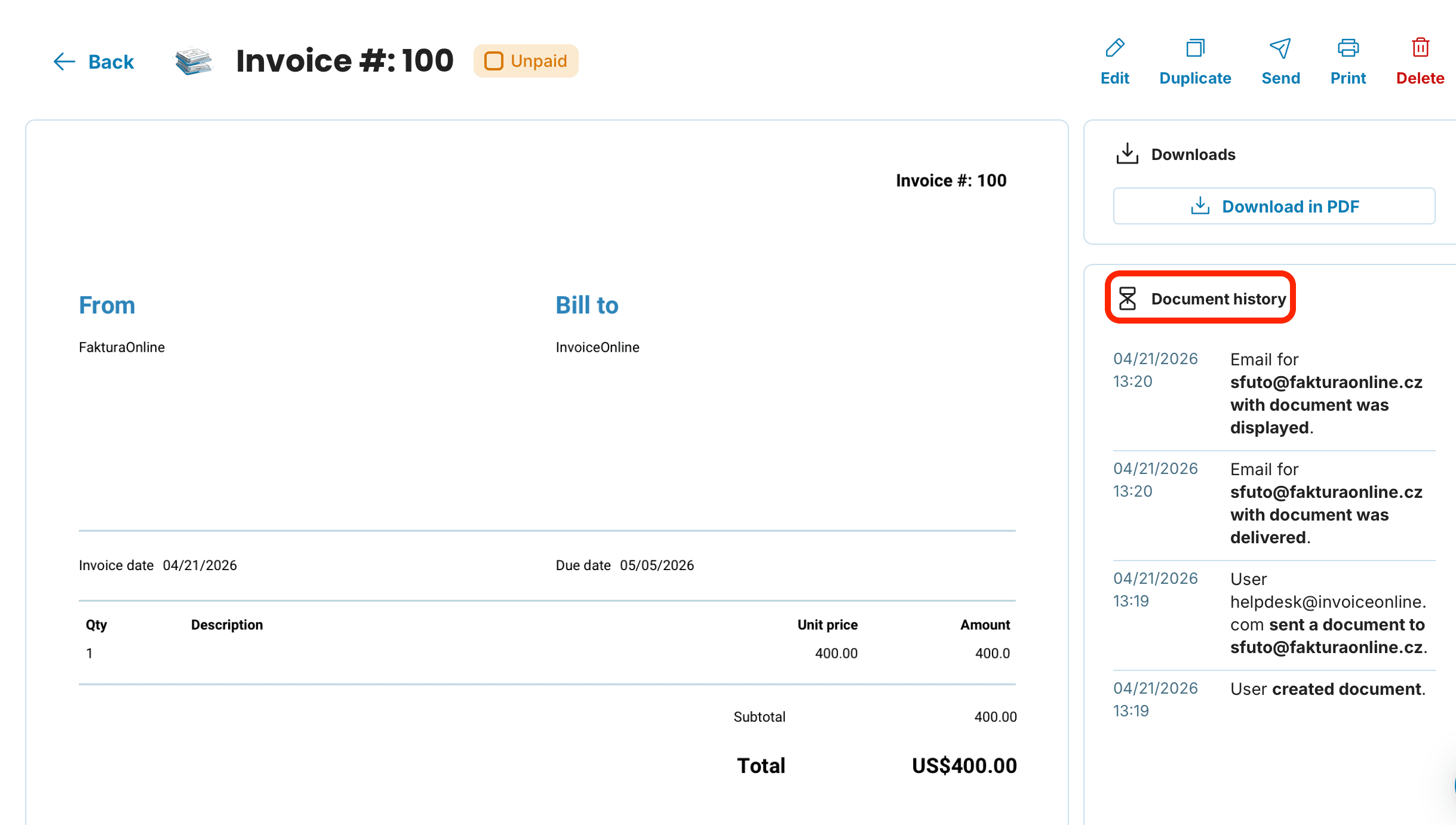
Sending invoices by email directly from InvoiceOnline is the fastest way to get your invoice to a client. No downloading, forwarding, or attachment hassles – everything is done in just a few clicks. And with delivery history, you always know whether your invoice arrived and when the recipient opened it.