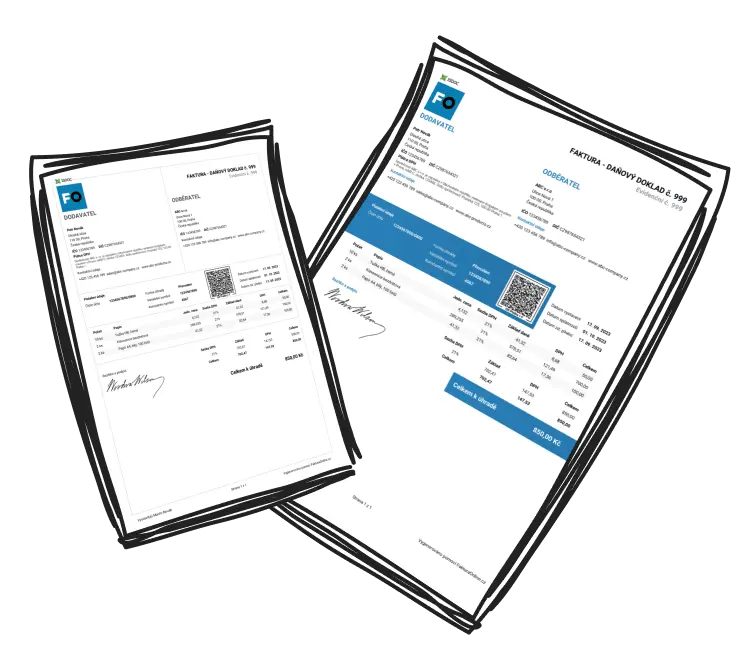
Document Duplication
Using the Invoice Duplication feature is straightforward and intuitive. Let's walk through it step by step.
How to duplicate an invoice
-
Go to the Invoices section
This is where you'll find all your issued invoices.
-
Find the invoice you want to copy
Select the document you wish to duplicate from your list of issued invoices.
-
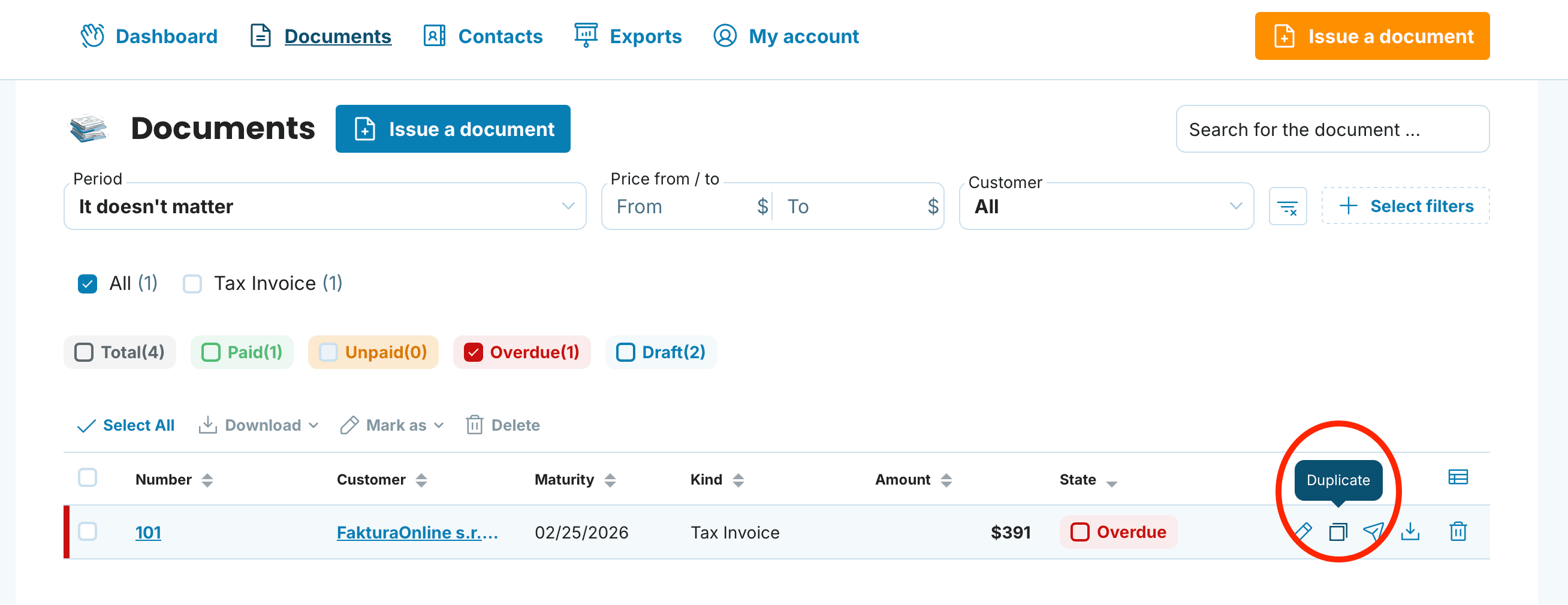
Click the Duplicate icon
You'll find this button in the right-hand column next to each invoice.
-
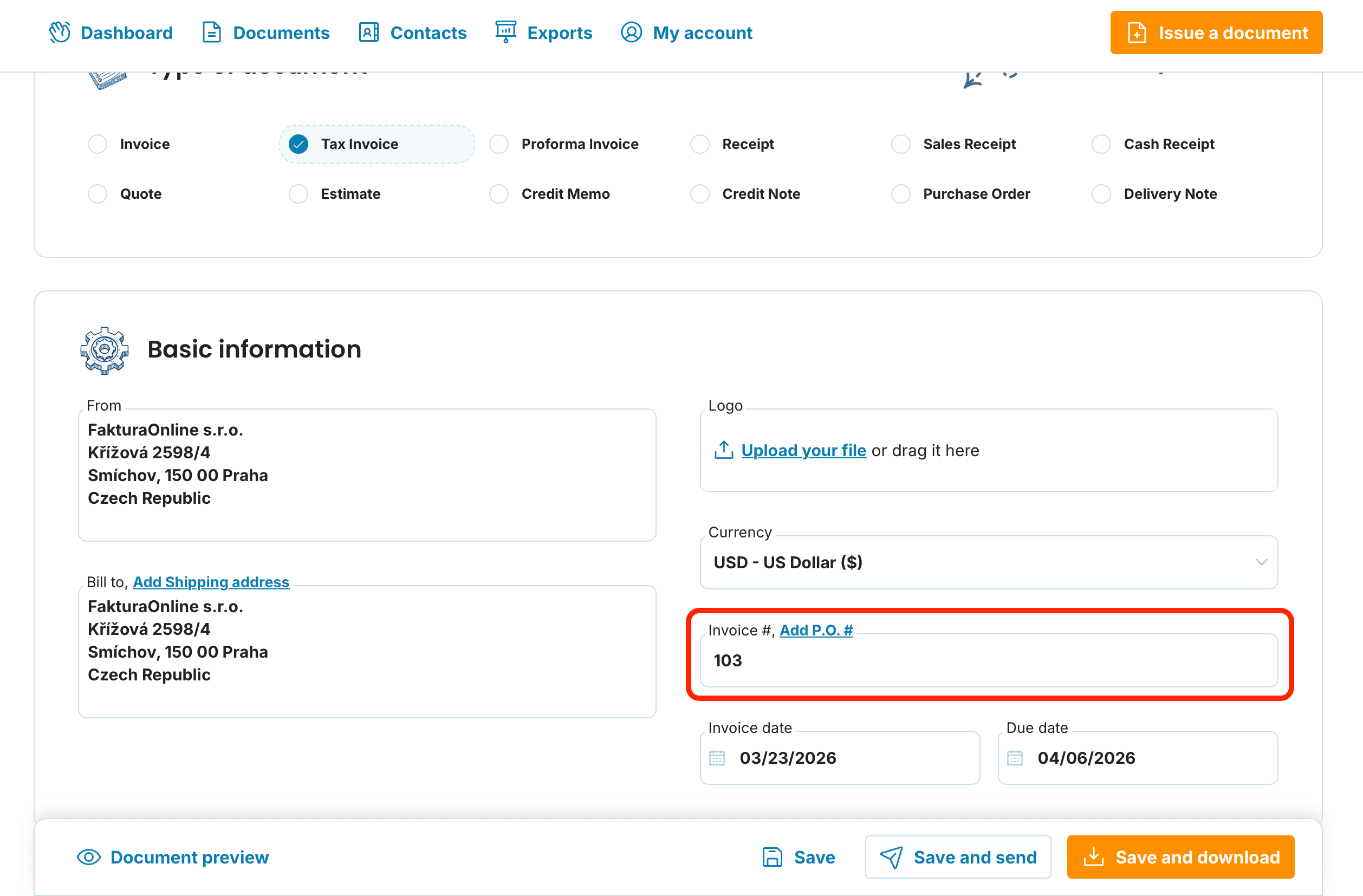
The system creates an exact copy
The only change will be an automatically incremented invoice number (e.g., from 102 to 103).
-
Edit the invoice as needed
You can change the date, line items, prices, notes, or any other details.
-
Complete the action with one click, just as you normally would. You can:
Save the invoice
Save and download as PDF

Watch out for pre-filled data 🔔
When creating a new invoice, details are automatically carried over from your most recently issued invoice. So if the last invoice you worked with was a duplicated older one, your new invoice will be based on that. We recommend always double-checking that your information is current
📩 If you need help with anything – whether it's invoice duplication or any other InvoiceOnline.com feature – don't hesitate to email us at [email protected]. We're happy to help!