Sorting and filtering of issued invoices

How to sort invoices
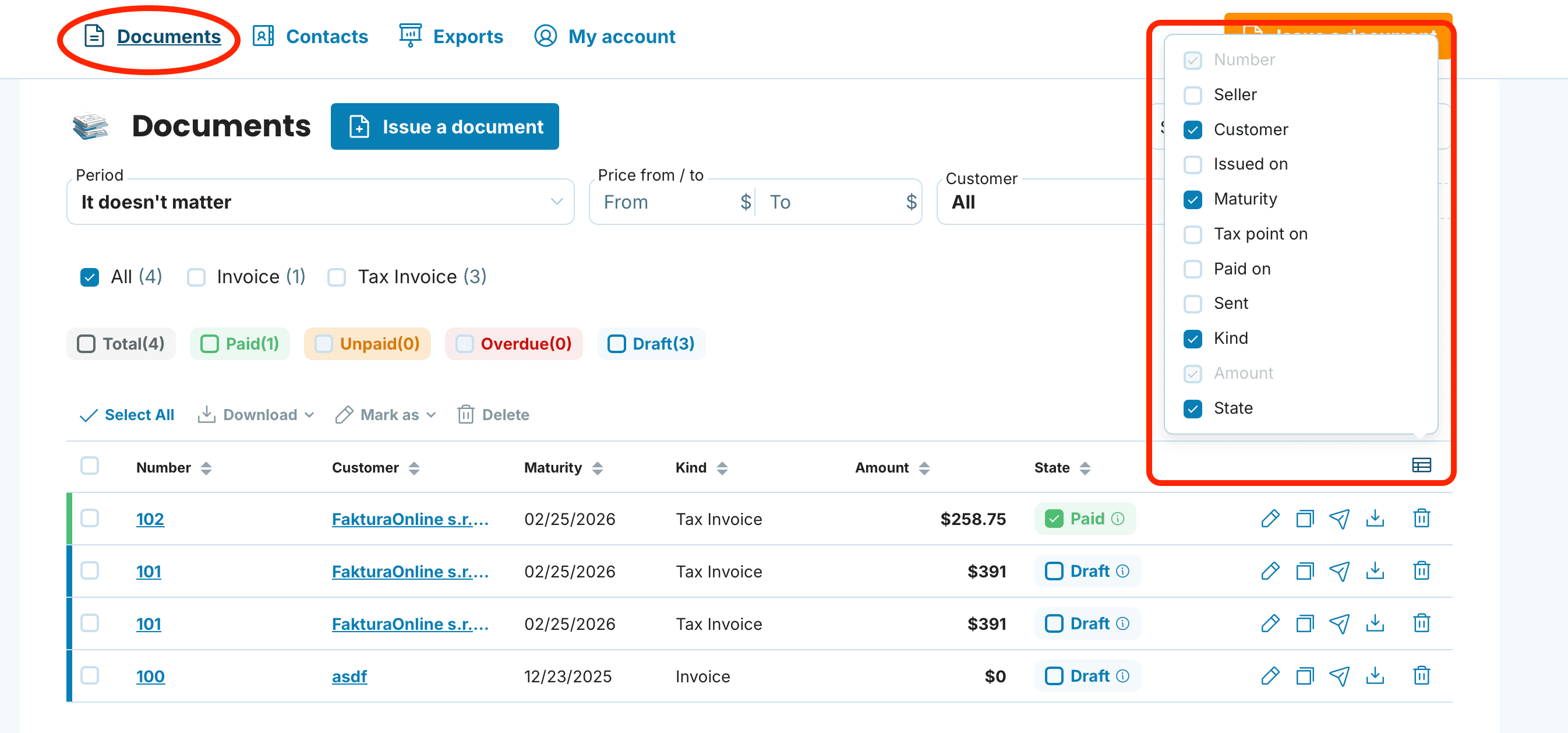
In the Documents section, first choose which columns you want to see in the overview. How do you do that? Check the detailed guide.
Then click the arrows in the top bar next to the name of any column – the invoices will immediately be sorted in ascending or descending order.
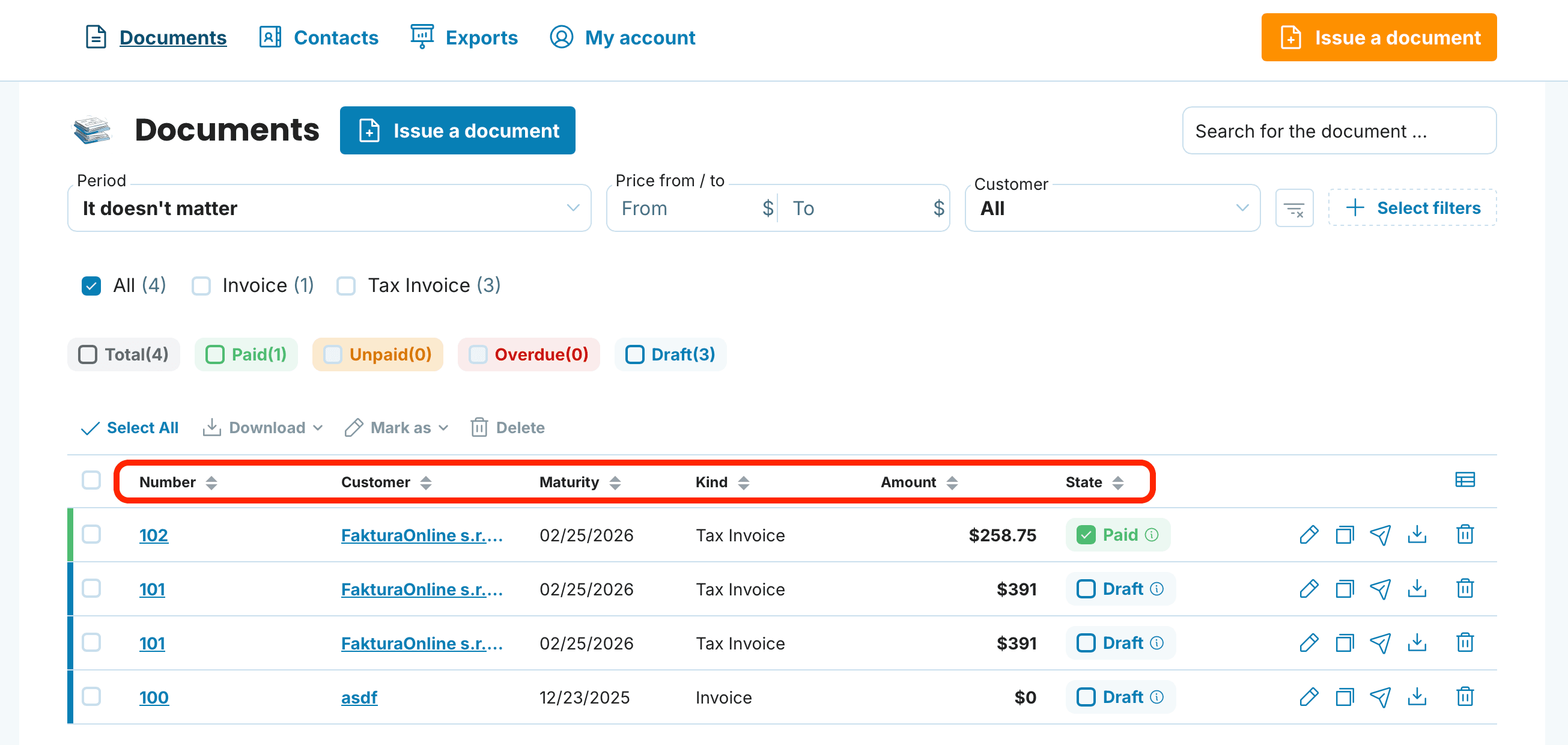

The most commonly used options are sorting by issue date (newest first), by due date (so you can see what will be due soon), or by amount (when you are looking for the largest orders).
Documents can be sorted by their:
Number – the invoice number used for quick identification and searching
Seller – useful if you issue invoices for multiple companies or branches
Customer – helps you quickly view all invoices for a specific client in one place
Issued on – provides a chronological overview of when invoices were issued
Maturity – helps you see which invoices are due soon and who should receive a reminder
Tax point on – the date determining the sales tax filing period
Paid on – lets you check when invoices were paid
Sent – allows you to verify which invoices have already been sent
Kind – distinguishes between document types such as standard invoices, advance invoices, or credit notes
Amount – gives you a quick overview of the value of each invoice
State – shows whether the invoice is paid, unpaid, overdue, or in draft

Sorting by customer is especially useful when you need to quickly review all invoices for a particular client – for example before a meeting or when handling a complaint.
How to filter invoices
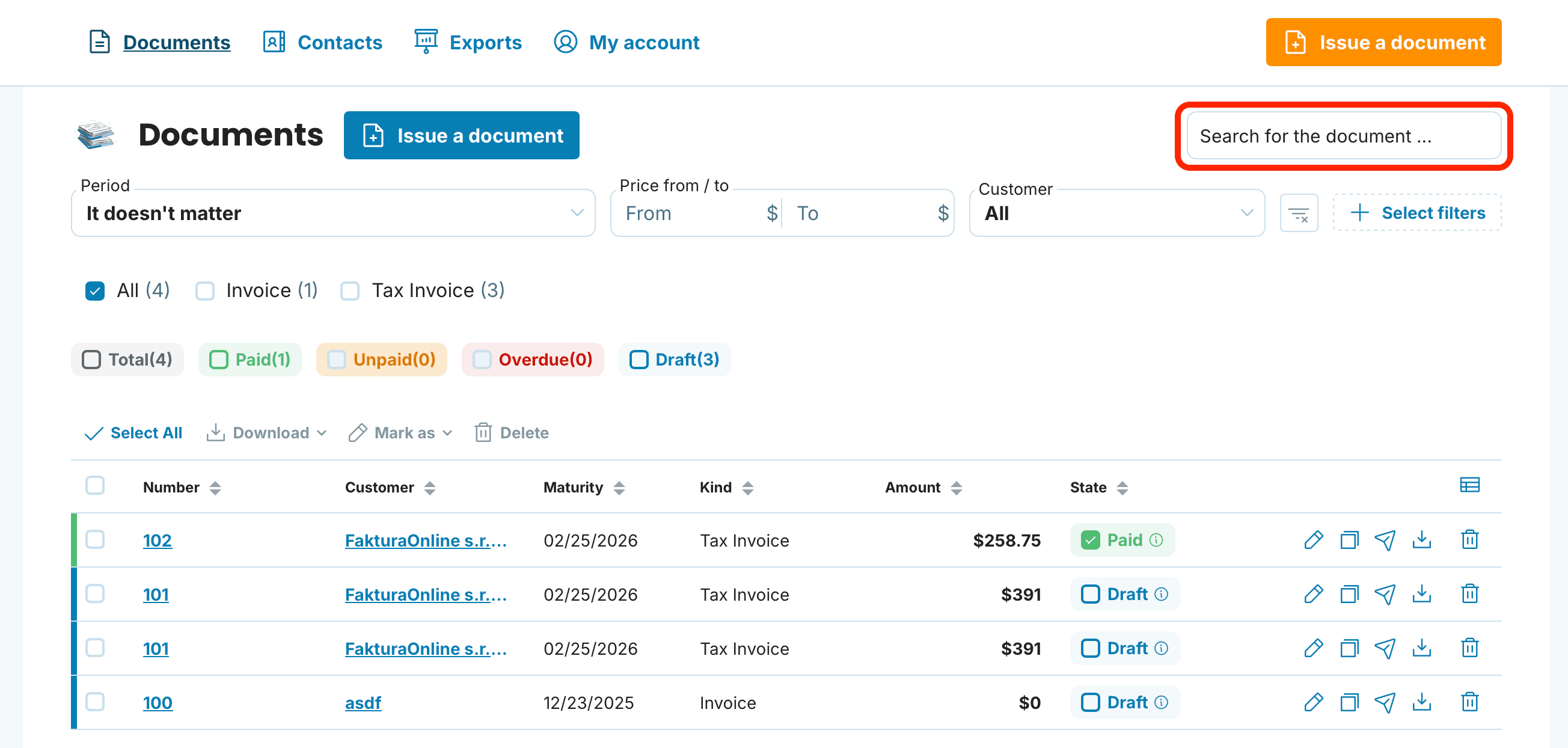
Above the list of invoices, you will find a search field. Simply enter the customer name, invoice number, or document type into the Search for the document... field and only matching results will be displayed.
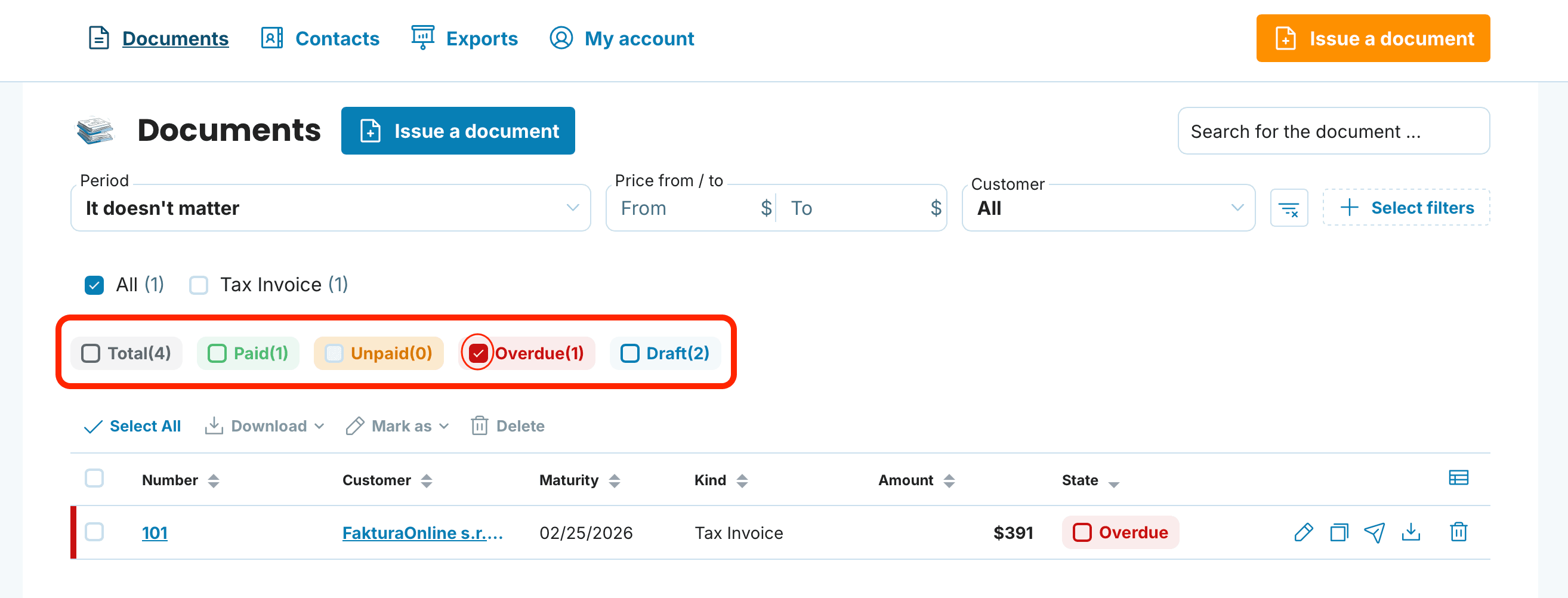
Do you need to see unpaid invoices? In the Invoice Statuses overview, check Unpaid / Overdue. In the same way, you can also choose to display Drafts or Paid invoices.
Thanks to sorting and filtering, you can find the right invoice in just a few seconds, even if you have hundreds of them in your account. Try both features – you will quickly get used to them and save time in your daily work with documents.
documents with easeCreate Document